Built a SwiftUI app that casts iPhone photos to a TV too old for AirPlay.
A personal iOS app for my family's 2017 Samsung TV, taken through ten rounds of real-hardware testing to TestFlight: discovery, streaming, collections, drag-to-select, and pinch-to-zoom mirrored on the big screen.
- Product Designer & iOS Developer · 2026
- Native iOS
- SwiftUI
- Built with Claude Code
- 10
- Rounds of iteration after v1, each one from testing on the real TV
- ~2.8k
- Lines of Swift across 17 files: SwiftUI, PhotoKit, Network.framework
- 8.1s
- To find the TV without Apple's multicast entitlement
- 4
- TestFlight builds uploaded for family testers
Overview
Our living-room TV is a 2017 Samsung 6 Series. It's a good screen, but it predates AirPlay, so getting family photos onto it meant a USB stick or a paid casting app with ads and a subscription. I wanted the thing those apps do, without the paywall: open my photo library, tap a picture, and it's on the TV.
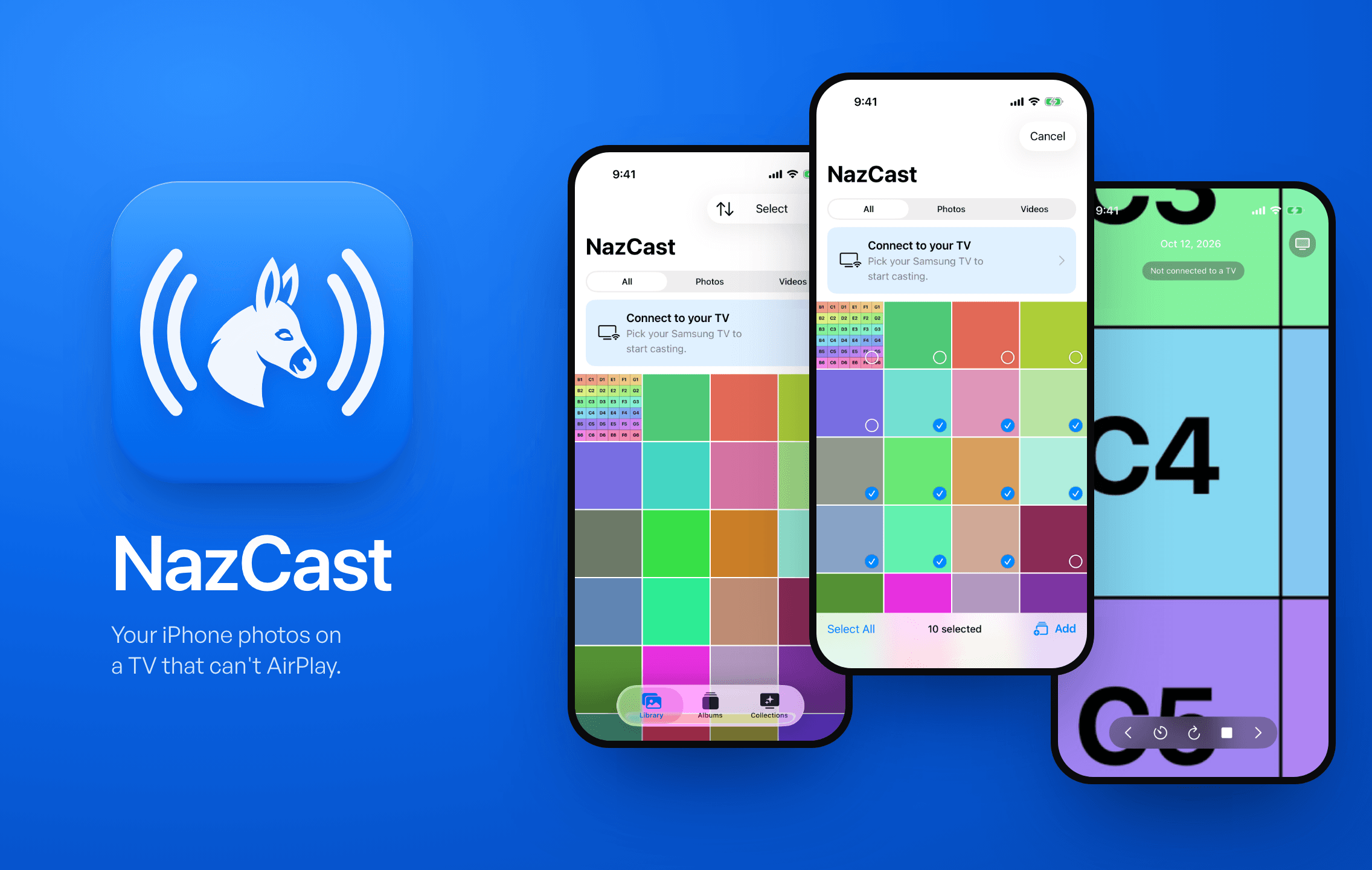
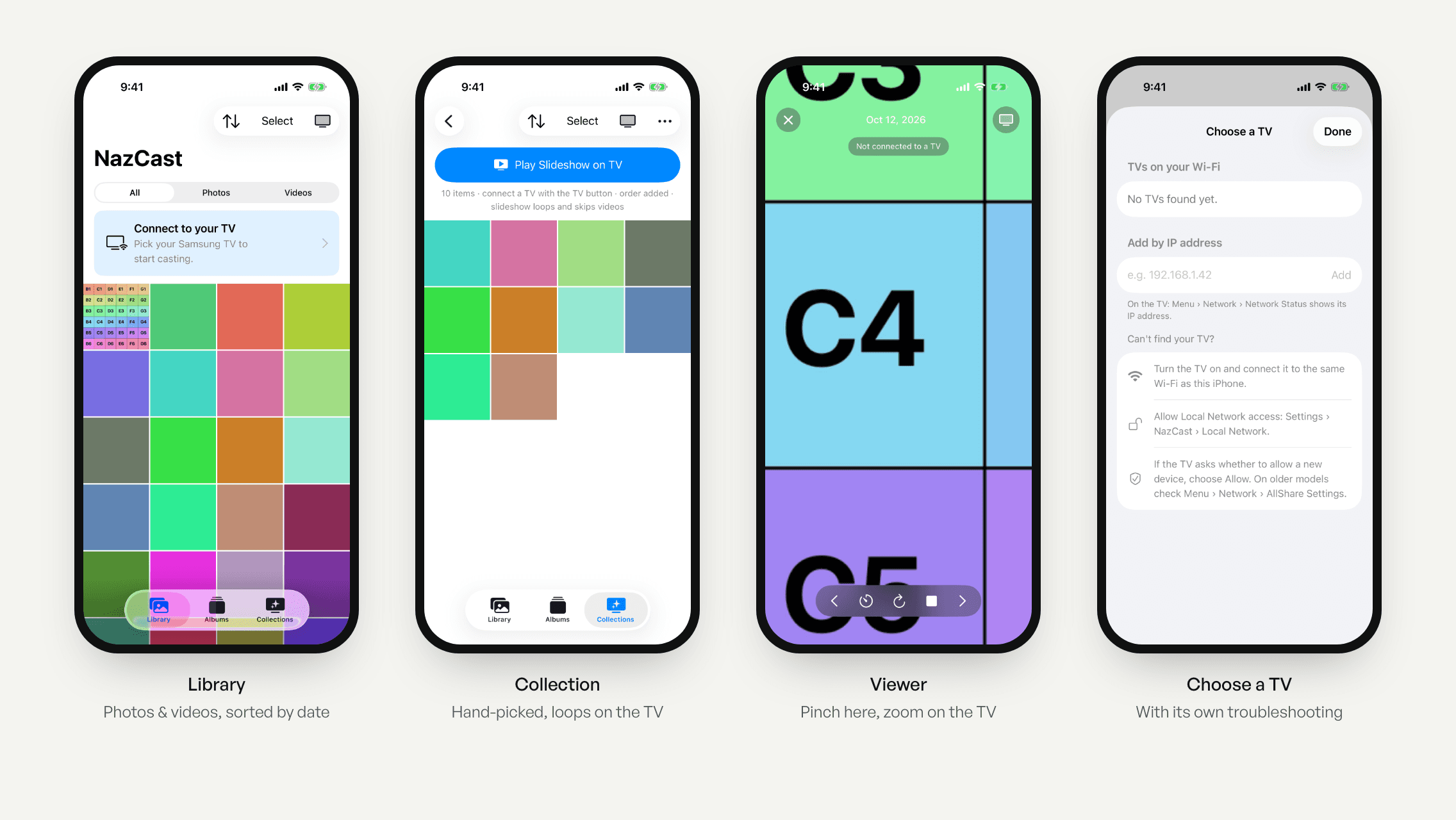
NazCast does exactly that. It finds the TV on the Wi-Fi, streams photos and videos to it over DLNA, plays slideshows, builds collections from shared albums, and mirrors pinch-to-zoom onto the TV. It's native SwiftUI, targets iOS 18+, uses the iOS 26 Liquid Glass icon format, and is on TestFlight for my family.
How I built it
I ran this project as product owner, designer, and QA, with Claude Code as my pair programmer. I set the direction and the bar, tested every build on my own iPhone against the actual TV, and turned what I saw into the next change. Claude wrote and debugged the Swift with me, and drove the Simulator and the TV directly so that every fix was proven on hardware, not assumed.
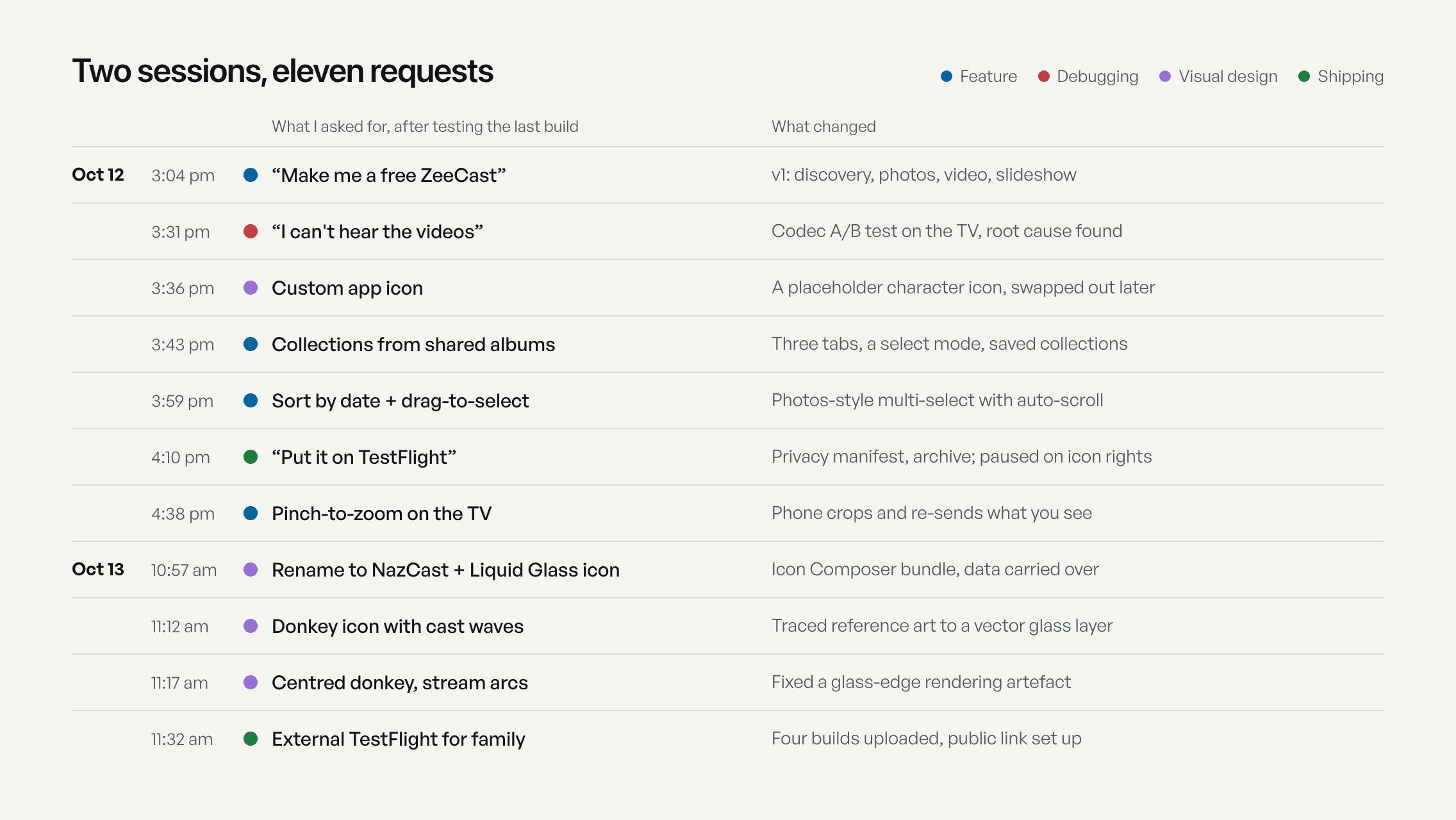
That loop is the real subject of this case study: eleven requests across two sessions, each one coming from using the previous build in the living room.
How it works
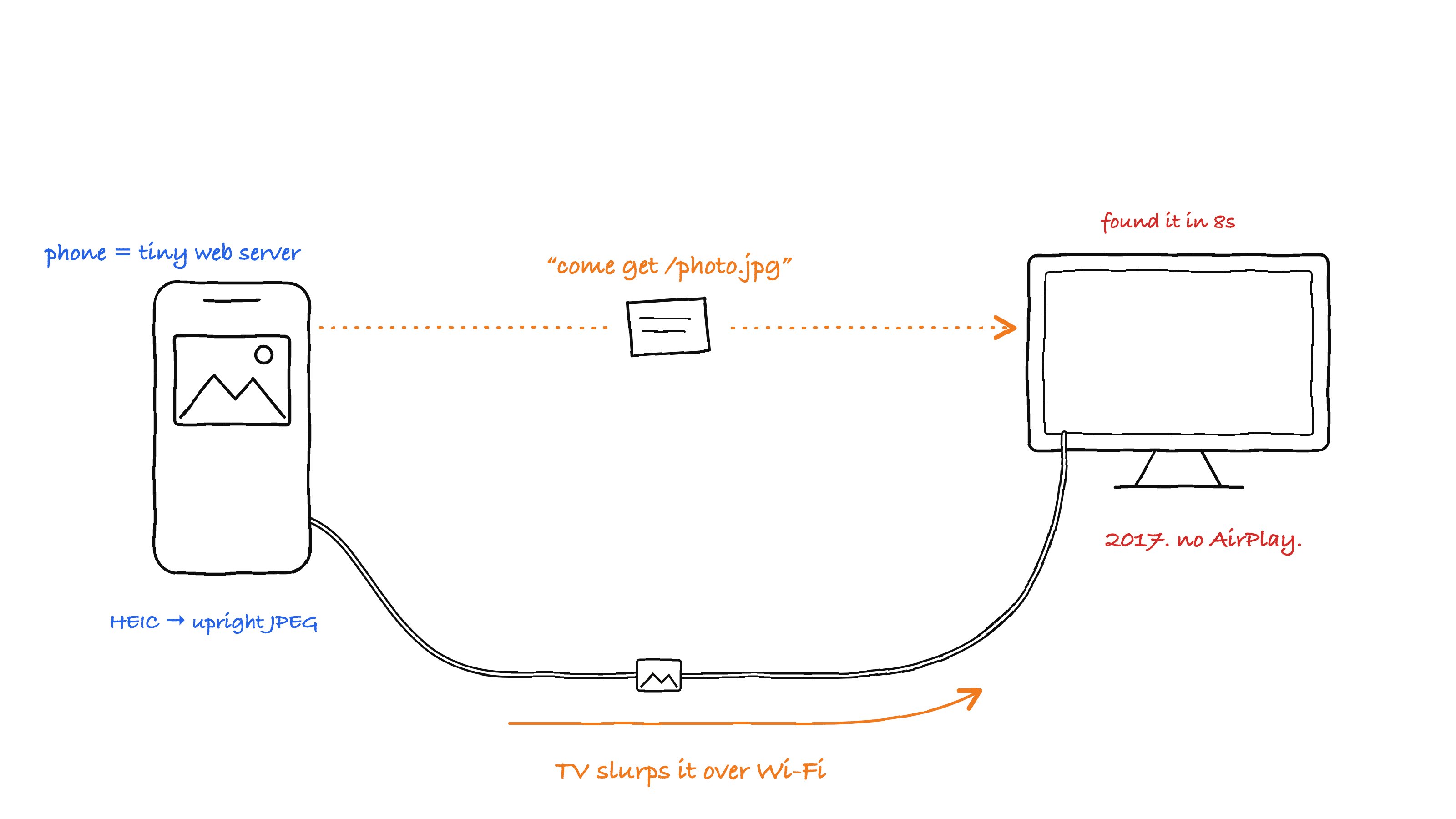
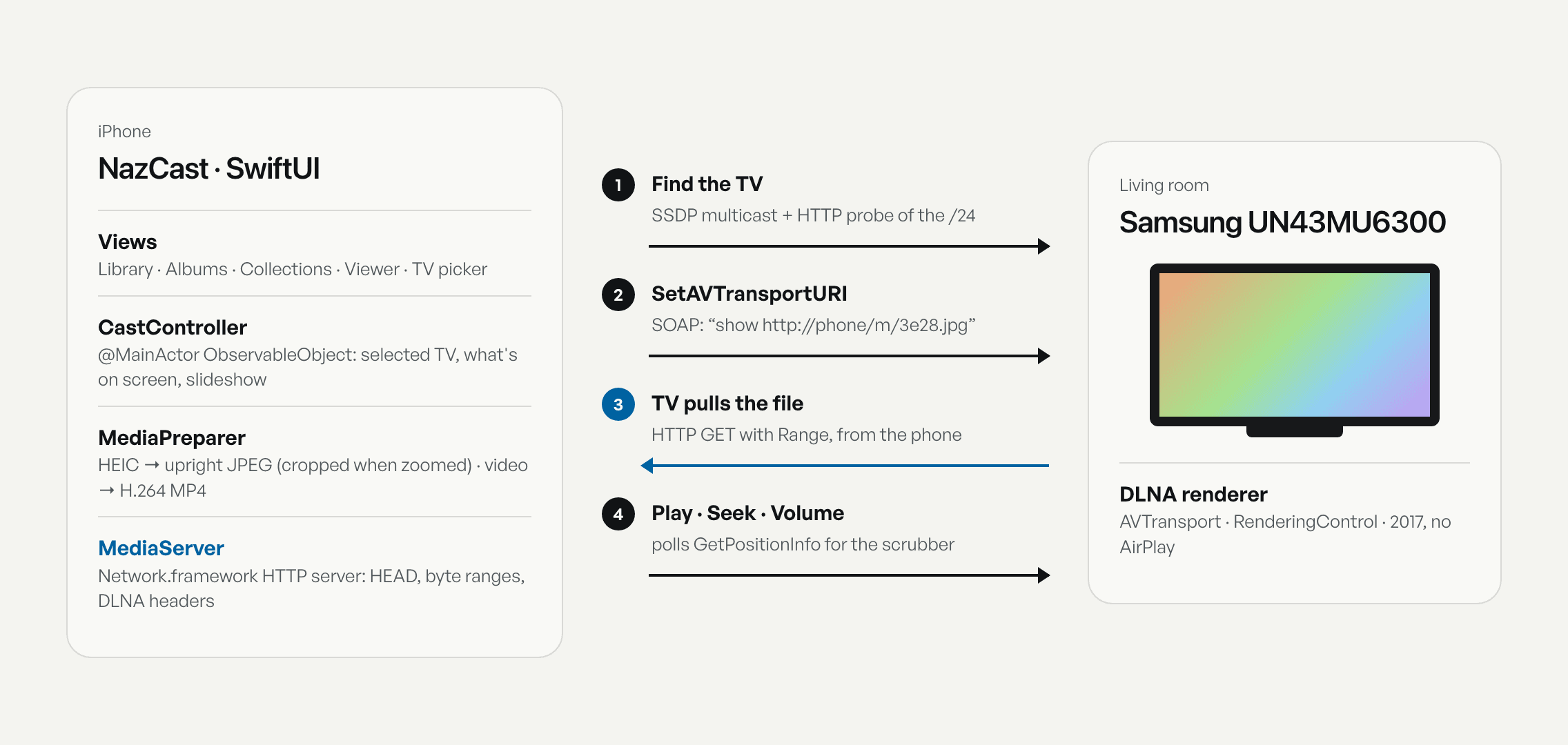
A DLNA TV doesn't accept pushed media. You tell it a URL and it downloads the file itself. So the app is two things: a SwiftUI front end over PhotoKit, and a small HTTP server built on Network.framework that serves the current photo or video to the TV, with the byte-range support a TV needs to seek in a video.
Before serving anything, the app converts each photo into something a 2017 TV can show: HEIC becomes an upright JPEG, because old TVs ignore the EXIF rotation flag, and video is exported to H.264 MP4. Control goes over UPnP SOAP: SetAVTransportURI, Play, Seek, volume, and a position poll that drives the on-phone scrubber.
v1: the TV wouldn't show up
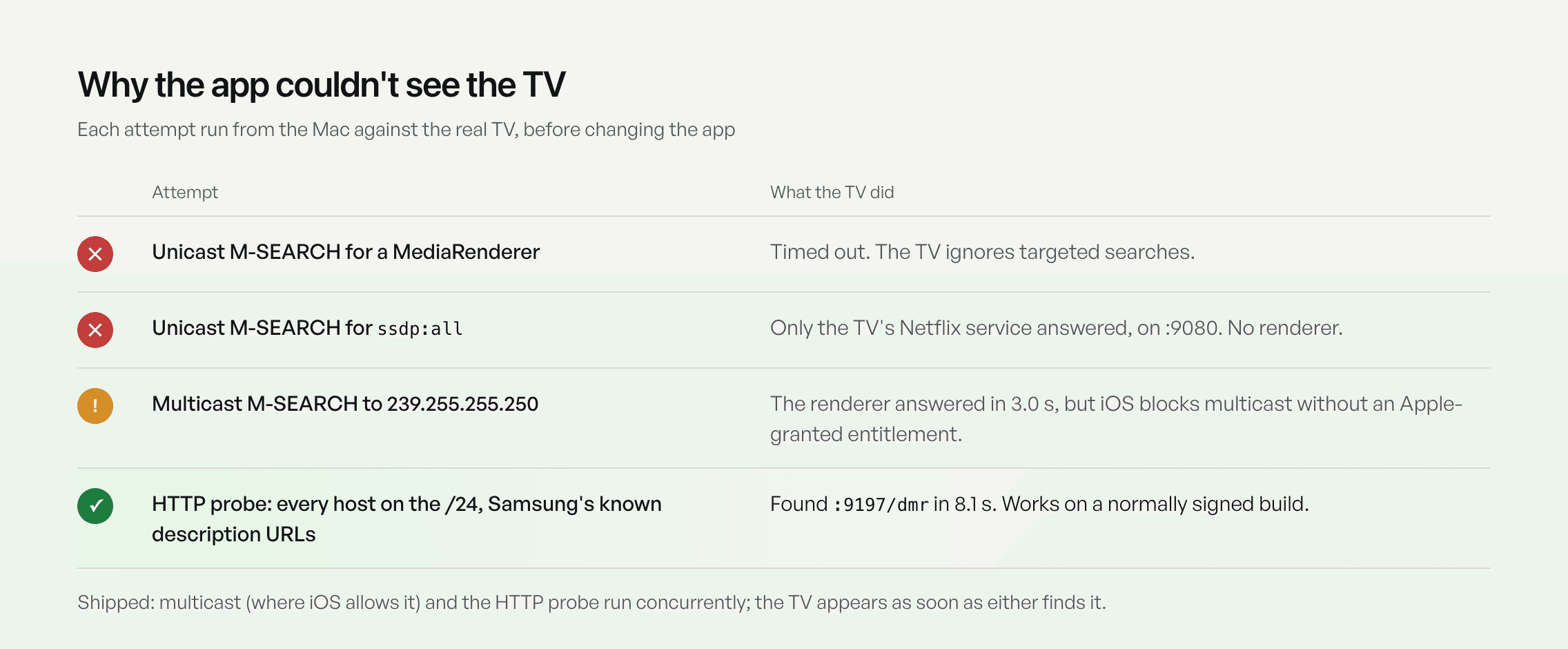
The first build compiled cleanly and found nothing. Rather than guess, we tested each discovery method from the Mac against the real TV. Targeted searches timed out. A broad search only woke the TV's Netflix service. The TV did answer a standard multicast search, but iOS blocks multicast unless Apple grants the app a special entitlement.
The fix was a fallback that doesn't need permission: probe every address on the home network at the URLs Samsung renderers use. It found the TV in 8.1 seconds. Two more quirks came out of the same testing. The first cast from a new device shows an allow prompt on the TV, during which it answers 705, “Transport is locked”. And Samsung starts showing a photo the moment it gets the URL, so its 701 reply to Play actually means success. Both are handled in the app.
/// Samsung's renderer only answers *multicast* SSDP, and iOS blocks multicast
/// without an entitlement, so ask every host on the /24 over plain HTTP.
private static func probe(_ host: String) async -> URL? {
    await withTaskGroup(of: URL?.self) { group in
        // 2014+ models, then 2010–2013 models
        group.addTask { await check("http://\(host):9197/dmr") }
        group.addTask { await check("http://\(host):52235/dmr/SamsungMRDesc.xml") }
        // First description document that lists AVTransport wins.
        for await url in group where url != nil {
            group.cancelAll()
            return url
        }
        return nil
    }
}Round 1: “I can’t hear the videos”
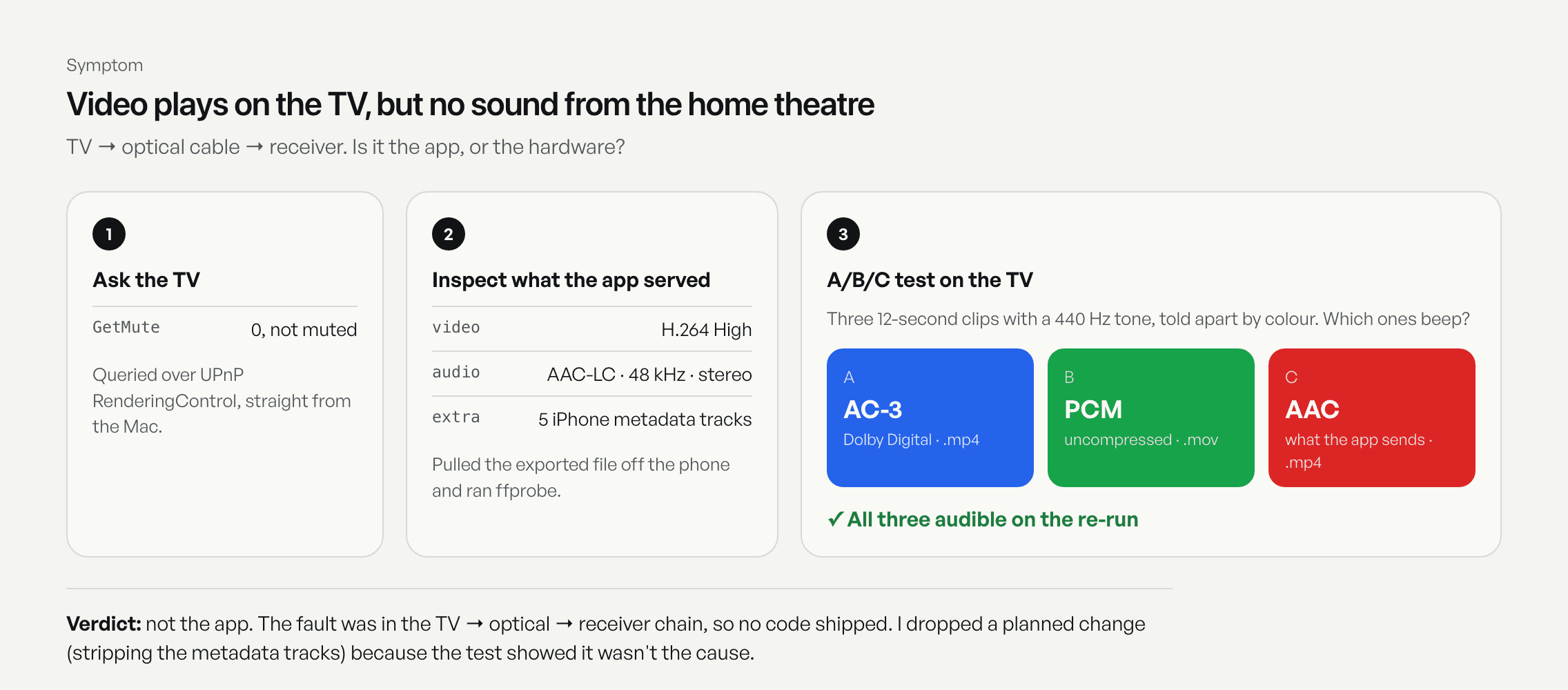
Video played on the TV but nothing came out of the home theatre, which is connected over optical. It was tempting to start rewriting the video export. Instead I wanted to know whether the app or the hardware was at fault.
We asked the TV whether it was muted (it wasn't), pulled an exported video off the phone to inspect it (standard AAC audio), and then cast three test clips with different audio codecs, told apart by colour so I could report back from the couch. All three were audible on the re-run. The fault was in the TV-to-receiver chain, so no code shipped, and a planned change to strip iPhone metadata tracks was dropped because the evidence didn't support it.
Rounds 3–4: collections and Photos-style selection
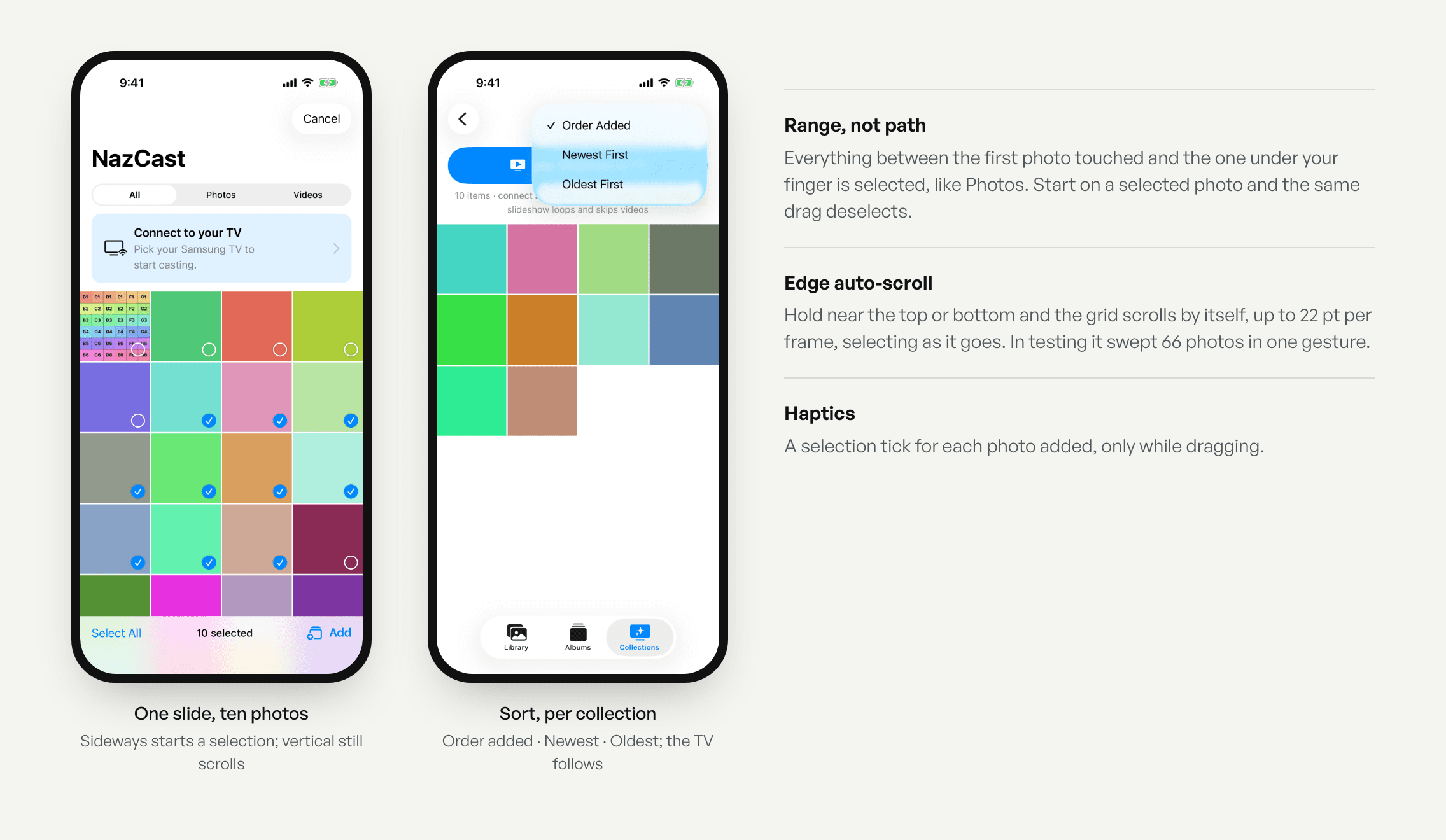
My family's best photos live in iCloud Shared Albums, not my library. So the app grew three tabs, Library, Albums, and Collections, sharing one grid component with a select mode. A collection can mix photos from anywhere, is saved on the phone, and plays as a looping slideshow on the TV. Underneath, a small AssetList type lets the same grid and viewer work with a lazy PhotoKit fetch of thousands of items or a plain array of hand-picked ones.
Then I asked for selection that feels like the Photos app: slide a finger across photos to grab them all. SwiftUI has no built-in gesture for that, so it's a UIKit pan recogniser bridged with UIGestureRecognizerRepresentable (iOS 18), which only claims the touch when the swipe is mostly sideways, so vertical swipes still scroll. Holding near an edge auto-scrolls with the new ScrollPosition API. The first version recognised the drag but wouldn't scroll; logging the real coordinates showed a mismatch between the grid's and the scroll view's coordinate spaces. I also swapped the original coral accent for system blue at this point, so the app reads as native.
/// A one-finger pan that only starts on a mostly-horizontal swipe, so vertical
/// swipes still scroll the grid (the same split the Photos app uses).
func gestureRecognizerShouldBegin(_ recognizer: UIGestureRecognizer) -> Bool {
    guard let pan = recognizer as? UIPanGestureRecognizer else { return true }
    let velocity = pan.velocity(in: pan.view)
    return abs(velocity.x) > abs(velocity.y)
}

/// Everything between the first photo touched and the one under the finger.
private func applyDrag() {
    guard let drag, let current = index(at: drag.point, clamp: true) else { return }
    var next = drag.base
    for i in min(drag.start, current)...max(drag.start, current) {
        let id = assets[i].localIdentifier
        if drag.adding { next.insert(id) } else { next.remove(id) }
    }
    if next != selection { selection = next }
}Round 6: pinch on the phone, zoom on the TV
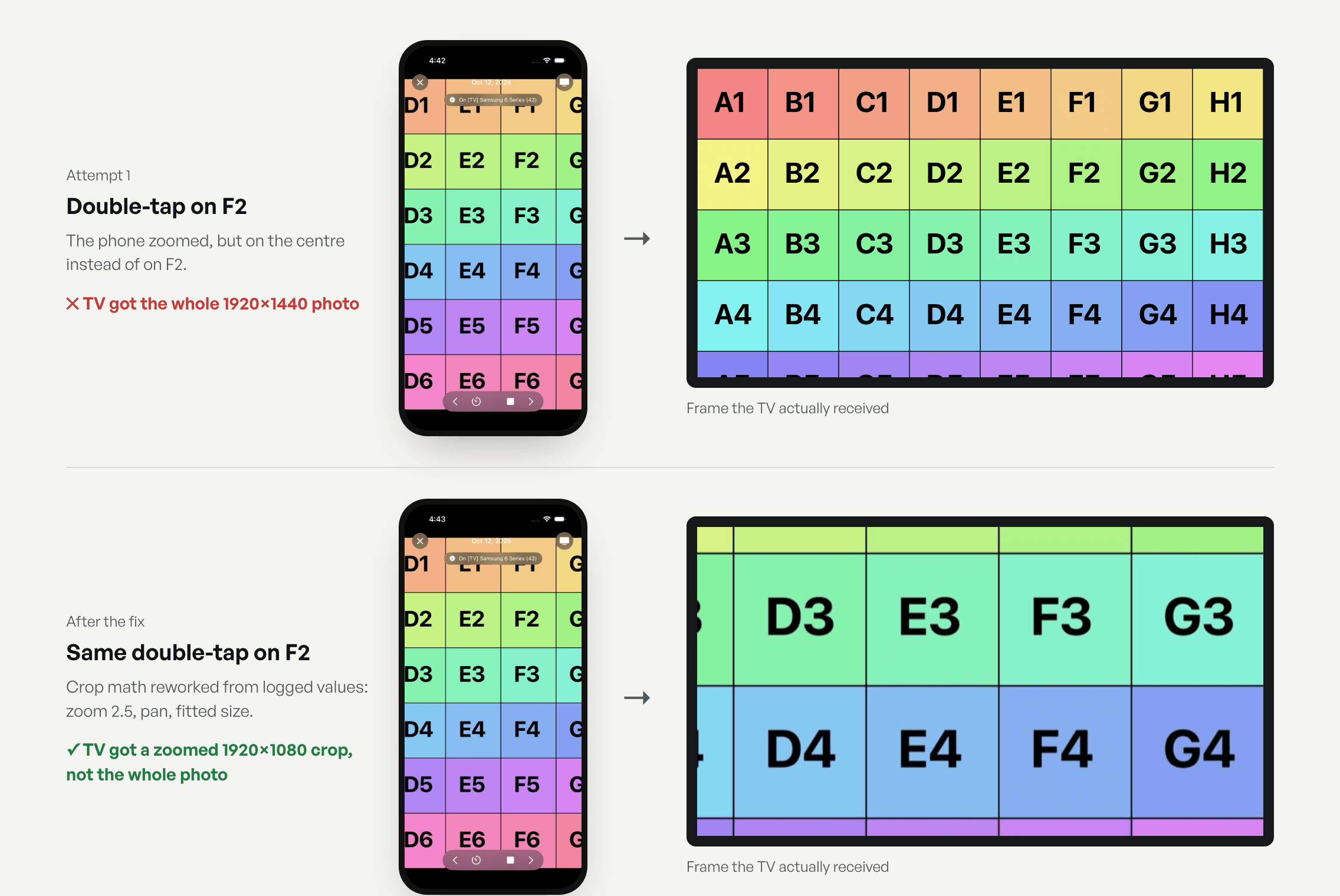
DLNA has no zoom command, so the phone does the zooming. When a pinch or pan settles, the app works out which part of the photo you're looking at, widens it to the TV's 16:9 shape, re-renders that crop from a higher-resolution source so it stays sharp, and sends it as a new image. The TV updates when you lift your fingers, not live, because each image change on this Samsung takes about a second and live updates would stutter.
To test it properly, we made a 4000×3000 photo of lettered squares, then downloaded the frame the TV was actually showing after each gesture. The first attempt failed in a way a quick look would have missed: the phone zoomed, but the TV still got the whole photo. Logging the zoom, pan and fitted size led to reworked crop math, and the same double-tap then sent the TV a zoomed crop.
/// The part of the photo to send the TV, as a normalized rect, or nil when zoomed out.
private func tvCrop() -> CGRect? {
    guard zoom > 1.01, fittedSize.width > 0, let image else { return nil }
    // Centre of what's on the phone screen, in normalized photo coordinates.
    let cx = 0.5 - pan.width / (fittedSize.width * zoom)
    let cy = 0.5 - pan.height / (fittedSize.height * zoom)
    // What a 16:9 TV shows of the photo at zoom 1, divided by the zoom.
    let px = image.size.width, py = image.size.height, tv: CGFloat = 16 / 9
    let vw = (px > py * tv ? px : py * tv) / zoom
    let vh = (px > py * tv ? px / tv : py) / zoom
    let cw = min(vw, px), ch = min(vh, py)
    let left = min(max(cx * px - cw / 2, 0), px - cw)
    let top = min(max(cy * py - ch / 2, 0), py - ch)
    return CGRect(x: left / px, y: top / py, width: cw / px, height: ch / py)
}Rounds 7–9: a name and an icon
The working name was MafooCast, with a placeholder character icon I'd dropped in for fun. When I asked for TestFlight, that icon became a real problem: it's someone else's character, and Apple's beta review would likely reject it for a public link. Shipping meant owning the brand.
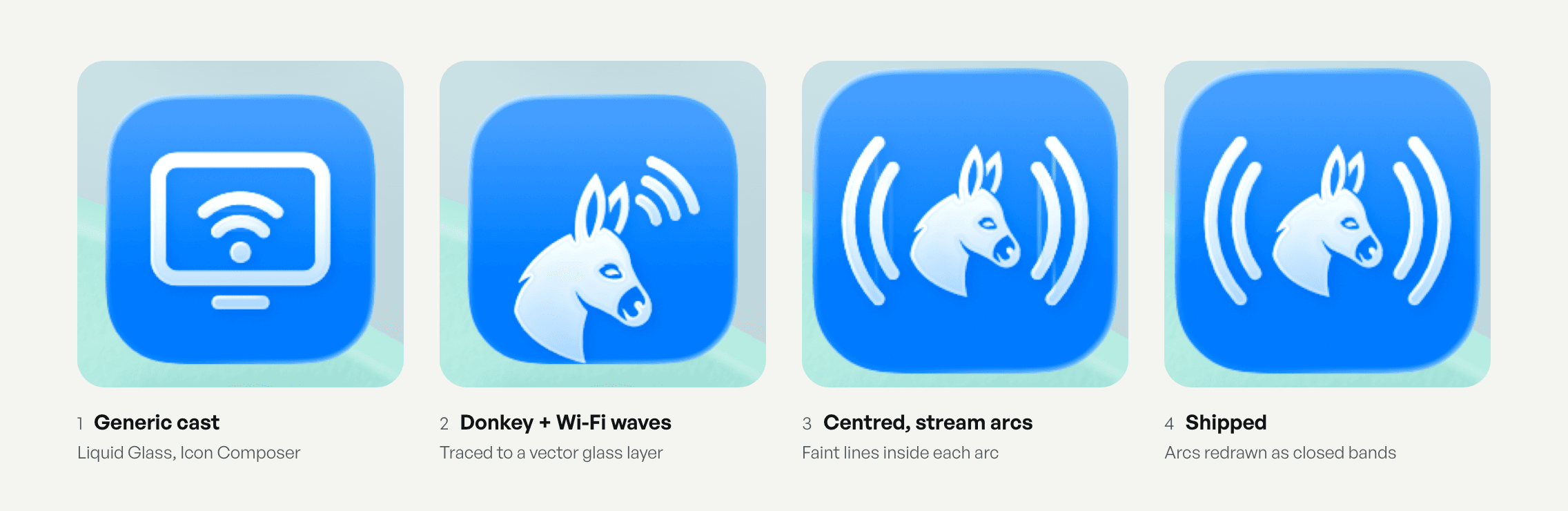
I renamed it NazCast and moved the icon to Apple's Icon Composer format, so iOS 26 renders it in Liquid Glass. The internal bundle ID stayed the same on purpose, so collections and settings carried over to the TestFlight version. The icon went through three rounds: a generic cast symbol, then a donkey with Wi-Fi waves (the donkey is a long-running inside joke in my family, and this app was always for them), traced from reference art into a clean vector, then the donkey centred between stream-style arcs.
That last round surfaced a rendering bug: faint vertical lines inside each arc. Liquid Glass treats every shape as closed, so an open curved stroke got a glass edge drawn across its open side. Redrawing each arc as a solid band with rounded ends fixed it.
Round 10: shipping to the family
TestFlight needed the unglamorous parts done right: an encryption declaration, a privacy manifest, a registered App ID, an App Store Connect record, and archives exported and uploaded from the command line. Four builds went up in one morning as the icon evolved. External testing then took one more discovery: App Store Connect only shows External Testing once an internal group exists. With that done, my family gets a public link and installs it through TestFlight.
What I'd do next
Request Apple's multicast entitlement, which would cut discovery from about 8 seconds to near-instant. Keep videos streaming when the app goes to the background, which iOS currently pauses. And commission or draw original donkey art before any public App Store release, since the current mark is traced from reference artwork.